accessoryLabel
string
Accessory label contentaccessoryLabelColor
string
Accessory label coloraccessoryLabelProps
TextProps
Accessory label propsaccessoryLabelTypography
string
Accessory label typography (name of typography, eg. main, body)agendaContent
AgendaContentType[]
AgendaContent propsagendaTimeBlock
AgendaDateTimeProps
AgendaDateTime propsalignTop
ListItemPresenter.AlignPartToTop[] (LEFT | RIGHT)
Controls which section (left, right) to align to top.avatar
AvatarProps
Avatar propsavatarSize
Avatar.avatarSizes (XLARGE | LARGE | MEDIUM | SMALL | XSMALL | XXSMALL | XXXSMALL)
The Avatar's size, use one of Avatar.avatarSizes enumbackgroundColor
string
Pass to control the color of the item background colorbadge
BadgeProps | BadgeProps[]
Pass badge(s) props to renderbadgeColor
string
Badge color. Default is Colors.$backgroundGeneralHeavy (blue30)badgeText
number | string
Badge textblocked
boolean
Render item with blocked indication backgroundButton propscheckbox
CheckboxProps
Checkbox propsclearPadding
boolean
Clear inner item horizontal paddingcontainerStyle
ViewStyle
Pass custom container stylecontentElements
ContentElementProps[]
Pass an array of ContentElements (an alternative for passing title, subtitle, description, etc...)customDescriptionElement
React.ReactElement
A custom element to display as a description contentcustomElement
React.ReactElement
Render a custom elementdescription
string | React.ReactElement
Description contentdescriptionColor
string
Description colordescriptionLeftIcon
PartialImageSource
Description left icon (local icon) sourcedescriptionLines
number
Description number of linesdescriptionTypography
string
Description typography (name of typography, eg. main, body)disabled
boolean
Whether this item is disableddraggable
boolean
Should this item have draggable indicationhidden
boolean
Render item as hidden (not invisible)icon
PartialImageSource
Local icon (doesn't support remote icon)iconColor
string | null
Custom icon coloriconProps
Omit<ImageProps, 'source'>
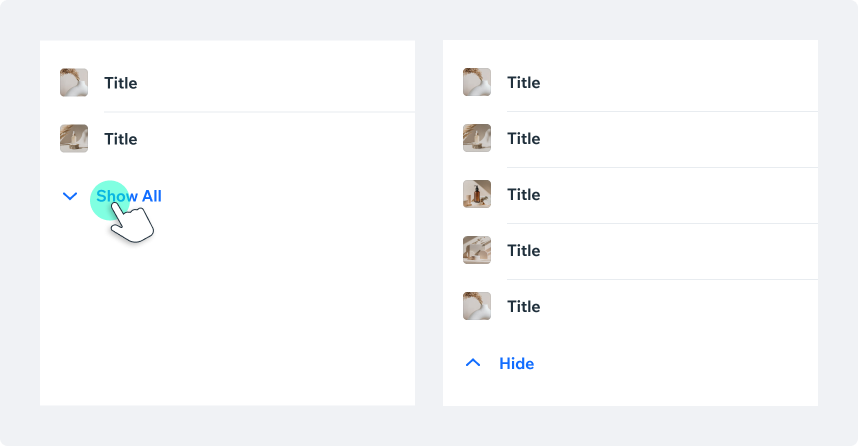
Icon props to pass to its Text elementisCollapsed
boolean
Should expandable type icon be in a collapsed state or notisNew
boolean
Add 'New' indicatoritemSize
ItemSizes ('xsmall' | 'small' | 'medium' | 'large')
Pass a specific item size (calculated automatically by default)label
ListItemPresenter.LabelType
Show a label (accepts either a string or label props)leftCustomElement
React.ReactElement
Custom element to render as the left part of the list itemmiddlePartAccessibilityLabel
string
Middle part accessibility labelminItemSize
boolean
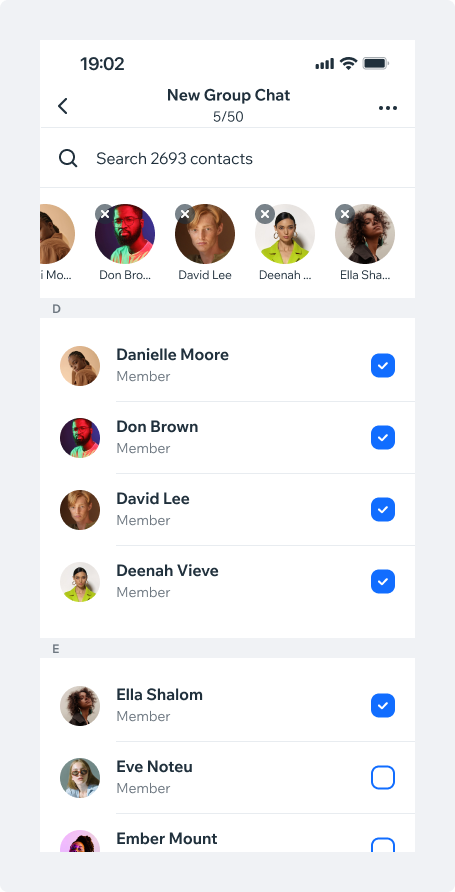
Sets item to use minHeight instead of height to allow content based height.multiSelectMode
boolean
Whether this item should support multi-select behaviornewIndicatorColor
string
'New' indicator custom coloronLongPress
(props: any) => void
Long press callbackonPress
(arg: any) => void
Press callbackonPressIn
() => void
Press callback, called before onPressonPressOut
() => void
Press callback, called when the press is releasedonSelected
() => void
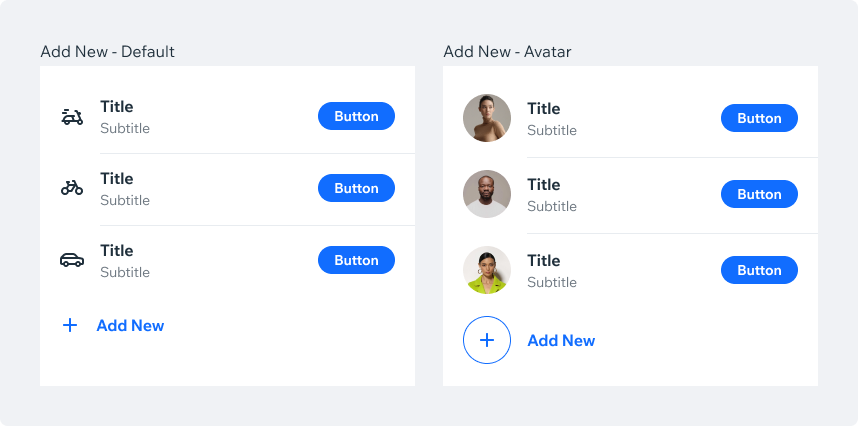
Callback for selection eventpreset
ListItemPresenter.PRESET (expandable | addNew)
The type of preset behavior.RadioButton propsrightCustomElement
React.ReactElement
Custom element to render as the right part of the list itemselected
boolean
Should this item be selected (affect different part of the item like checkbox/multi-select)separatorMode
SeparatorModes ('agenda' | 'none' | 'partial' | 'full')
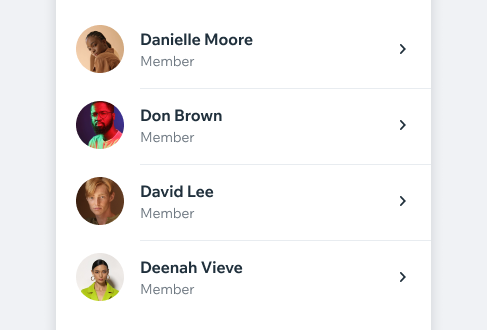
Separator mode (none|partial|full|agenda). Default is partialshowAccessoryIndicator
boolean
Show showAccessoryIndicator (for drill-in items)showCheckmark
boolean
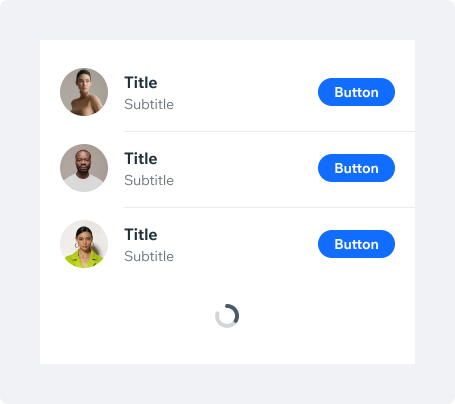
Show checkmark iconshowLoader
boolean
Show a loadersubtitle
string | React.ReactElement
Subtitle contentsubtitleColor
string
Subtitle colorsubtitleLines
number
Subtitle number of linessubtitleProps
TextProps
Subtitle props to pass to its Text elementsubtitleTypography
string
Subtitle typography (name of typography, eg. main, body)throttleTime
number
throttle time in MS for onPress callbackthumbnail
ThumbnailProps
Thumbnail image sourcetitle
string | string[]
Title contenttitleColor
string
Title colortitleLeadingAccessory
React.ReactElement
Leading accessory to render before the title contenttitleLines
number
Title number of linestitleProps
TextProps
Title props to pass to its Text elementtitleTrailingAccessory
React.ReactElement
Trailing accessory to render after the title contenttitleTypography
string
Title typography (name of typography, eg. main, body)toggle
SwitchProps
Switch propsuseView
boolean
Should use View as container element to allow propagation of touch eventwideThumbnail
boolean
Should render a wide thumbnail