- Overview
- Implementation
- Icons creation and usage


Assets contain all shared resources needed for One App.
Icons, Illustrations, Animations etc..
All of our app assets are located in our Assets Library
Using uilib you can access all of those assets in your code.
Usage
import {Assets, Image} from '@wix/wix-react-native-ui-lib';

<Image source={Assets.icons.general.menu} />
<Image source={Assets.illustrations.newOrder} />
Icons
There are currently two important types of icons assets
- General icons (Assets.icons.general.xxx)
- App icons (Assets.icons.apps.xxx)
See all available icons in our demo app under Assets -> Icons
Illustrations
All of our app illustrations are located in our assets library, you can access them using the Assets.illustrations.xxx path
See all available illustrations in our demo app under Assets -> Illustrations
If you need a new asset please contact us (team ui) or open a ticket to WOAUILIB
UX designers should create new icons according to these guidelines and then contribute them to our library. Here are a few requirements and tips:
Make sure your icon is visually similar and conveys the same message as its’ counterparts in desktop design system and in illustrations (if relevant).
- Use one of the grids suitable for your icon size.
- Line width is 2px.
- Use centered alignment for your lines.
- Keep the corners rounded.
- Keep the ends rounded.
- Use <$iconDefault> design token
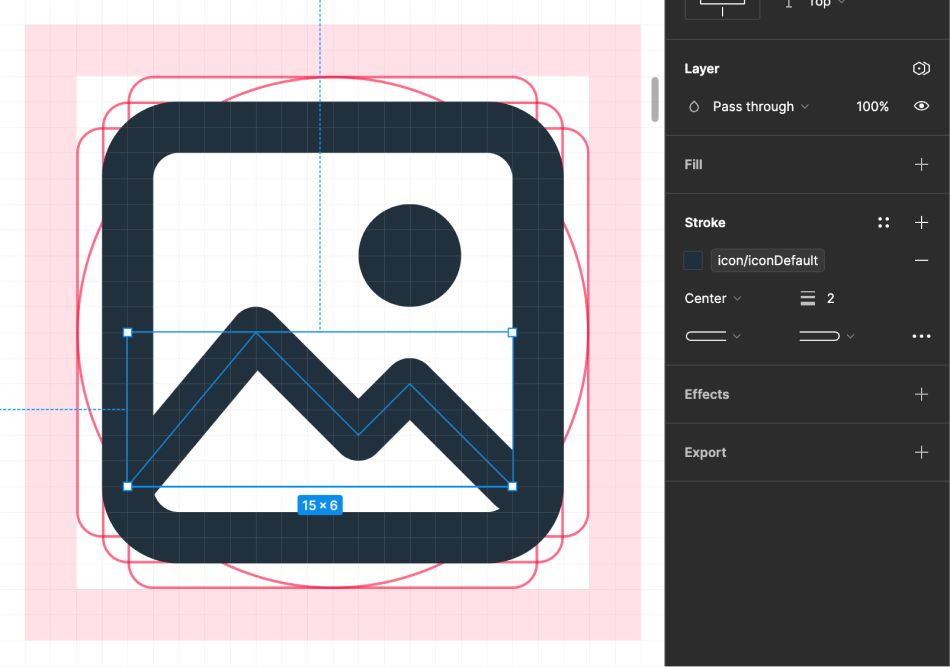
To get a new icon approved and contribute it, fill our Review Request form and add a link to the Figma file with the new icons and the screens they are used in.
⚠️ Keep your icons editable and not flattened.
If everything is done properly - we’ll add the new icons both in our Figma library and in code.
Note that adding new assets may be affected by the release cycles or our capacity, so try to request new icons as soon as possible.
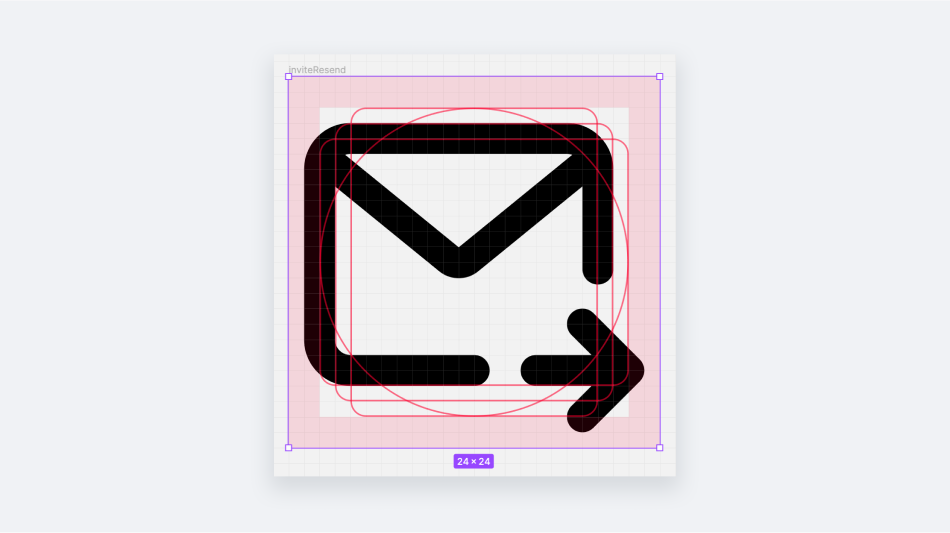
- Keep your icons as simple as possible and make sure there’s enough “white space” in your icon.
- Round shapes are less dominant and appear smaller than the same size rectangular shapes. Keep this in mind to make sure that groups of icons look homogeneous and well balanced.
- Some icons can “bleed” into the safe area in order to provide a balanced composition.
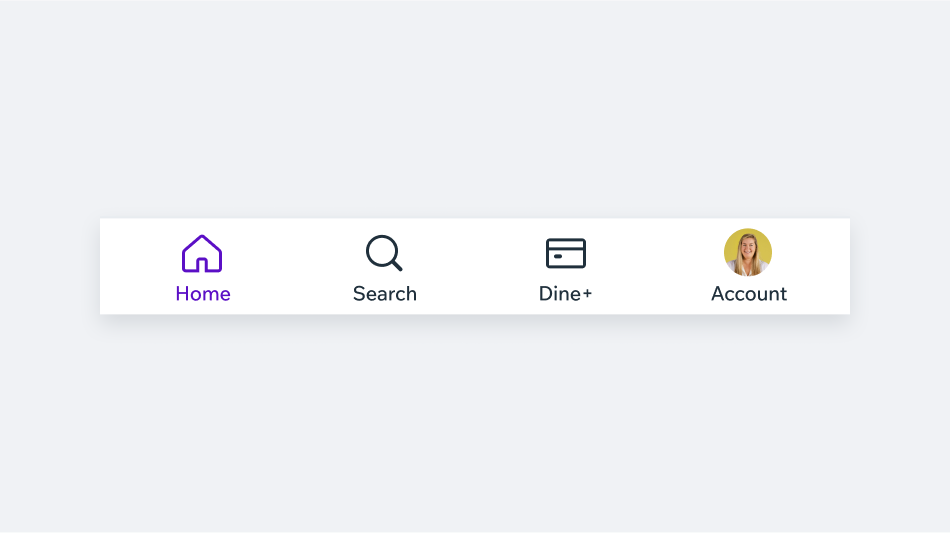
Icons used in the bottom navigation are created just like other regular icons. The only exception is the line width, which should be at 1.5px and not 2px.
Selected icons can remain as an outlined icon, or switch to a filled look (note that another asset will be required).
- Make sure that icon color token is
- Combine or flatten all the shapes into a single vector named
- Check the asset name, make sure it’s not vertical specific, but more general (for example, instead of “payments” use words like “money”, “creditCard” etc.).
- Add asset path in the description, in this format: assets.icon.general.iconName
- Export the asset in 5 scales: 1x, 1.5x, 2x, 3x, 4x
- Once exported, use one of the “reduce size” services (like Tiny PNG) to reduce the assets size.
- Open a MADS Jira ticket for asset upload or use Noci (if available).