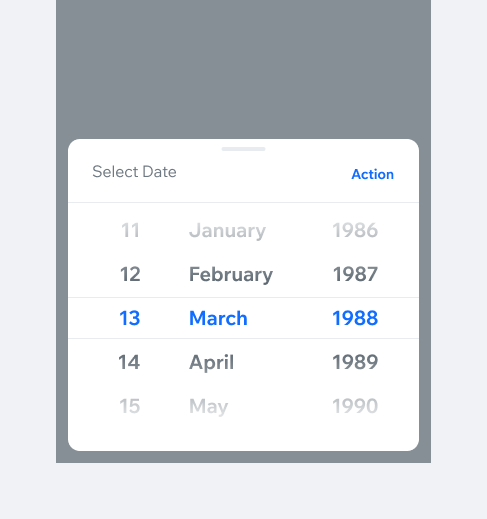
DatePickerA date picker is used for selecting a specific date, time, or both. Date picker dialog can be displayed as a calendar or a wheel picker.
- Overview
- UX Guidelines
- Dev
Usage Example
Date Picker TypesYou can display a date picker in one of the following styles:
Date Picker Field TypesDate Picker can be triggered by one of the following field types:
| Type | Preview |
|---|---|
| Form picker field | |
| Filter picker field | |
| Settings picker field |
Date Picker Field States
| Type | Empty | Full |
|---|---|---|
| Form picker field | ||
| Filter picker field | ||
| Settings picker field |
Limiting date selectionThe Date Wheel Picker can limit the range of selectable dates. The "years" wheel hides years outside the range, while out-of-range months and days appear disabled and are skipped automatically during scrolling.
Hiding specific days or months is not supported. By default, the initial date is set to today, though it can be customized.Date limitations can be set to:
Minimum Date: prevents selecting dates earlier than the specified initial date.
Maximum Date: prevents selecting dates later than the specified initial date.
For ranges tied to relative durations (e.g., "at least one year from today"), disabled dates should update automatically as the current date changes.
Spec
TabletOn tablet devices, date picker will be proportionally larger, yet remaining compact for convenience.
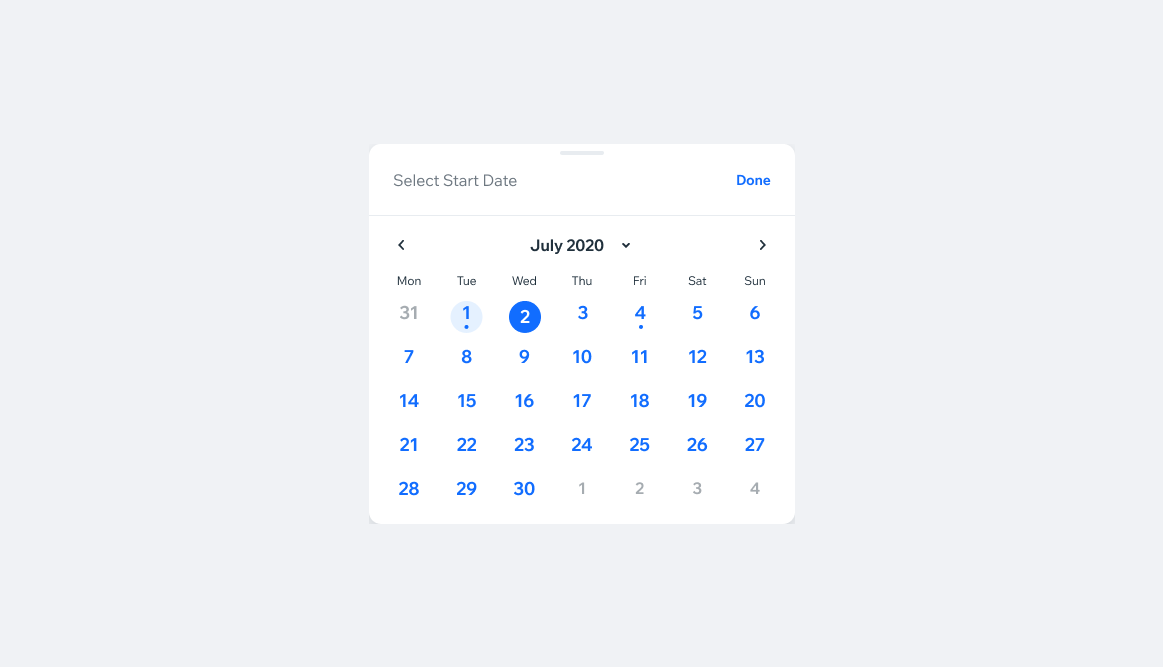
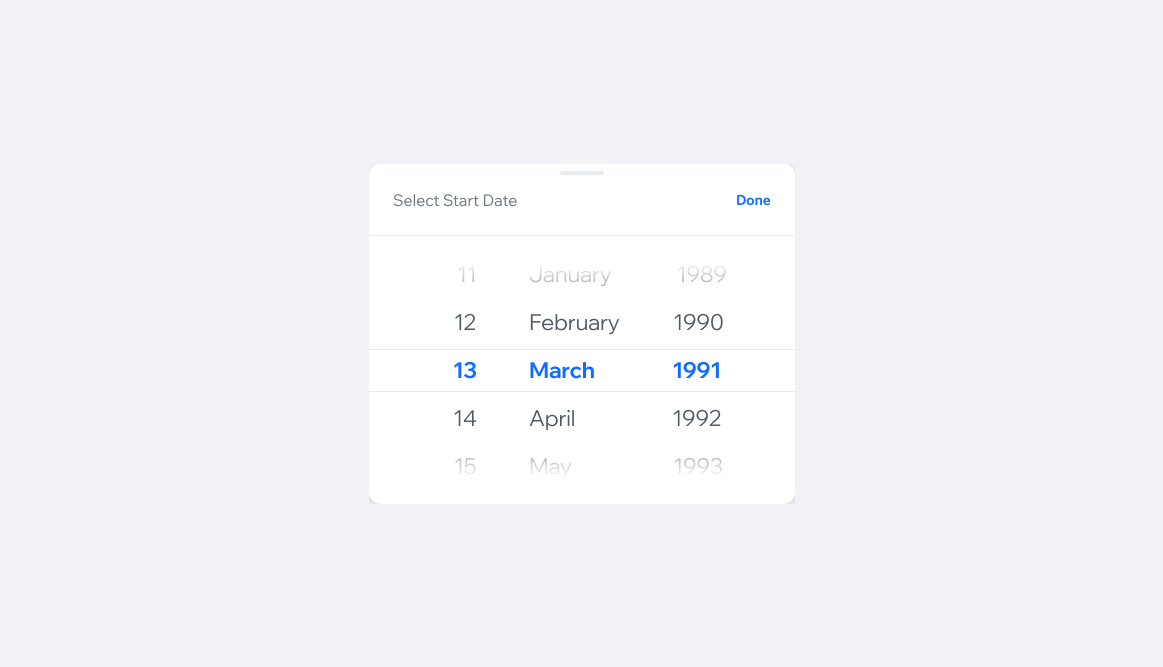
Confirming SelectionIn calendar dialog, “Save” or “Done” actions are optional and the date selection can be performed simply by selecting a new date. Some cases may require a clear CTA while other can be more “instant” . In addition, date saving can be enhanced by an optional indication in form of a Toast. Rely on a common sense, conventions and feel free to contact us if unsure.
PlaygroundCode Example
APIThis is the list of additional props for the component