LocationPickerThis component, in most cases, will be displayed as part of a form. Once tapped, it will open a search modal.
Since map view relies on the Google Maps services, when user provides an address recognized by Google Maps, Location Picker will be displayed with a Map.
In case the address can’t be located, Location Picker will be displayed without a Map.
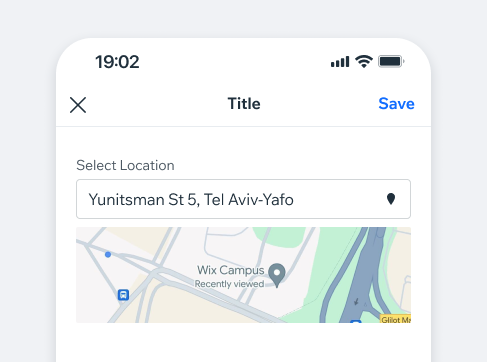
- Overview
- Dev
Usage Example
Location Picker EntriesLocation Picker can be triggered by one of the following:
Form Field (default)Mainly used as part of a form, works cohesively with the text field component and other form related components.
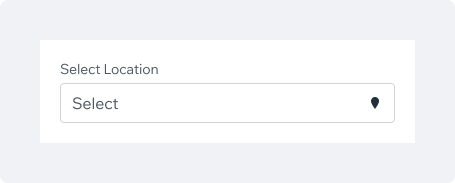
Filter FieldUsed mostly for filtering a screen or part of it. Can be combined with search functionality.
The colon symbol in the Label is not part of the component itself and should be included as part of the text string.

Settings FieldBased on ListItem component.
Used mostly when the picker is part of a settings screen.

Location Search
Map View
| Display mode | Preview |
|---|---|
| Map View with Location and Address Map is displayed if the location is a recognized Google Maps address. | 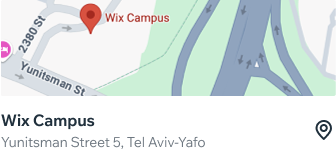 |
| Map View and address only Map is displayed if the location is a recognized Google Maps address. | 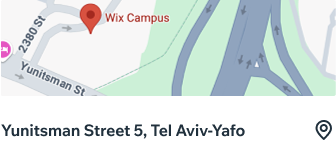 |
| Location and Address only |  |
| Address only |  |
Navigate ActionIn some cases, a dialog displaying navigation apps can be triggered. Here’s it’s display logic:
- Identification if any navigation apps are installed
- If none are installed, user is offered to install one
- User can be offered to use only an Android or iOS native maps
- If only a single app is installed it can be opened right away
- If several navigation apps are installed, user can select one to use
- If user picked a default app for navigation - it can be opened right away
Spec
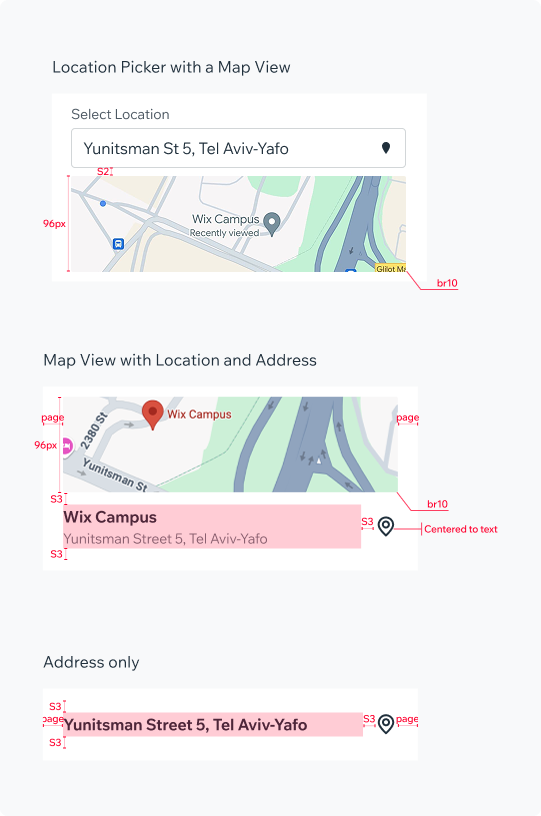
UsageCode Example
<LocationPicker
  title={'Default'}
  placeholder={'Location'}
  enableErrors
  validationMessage={'Location is required'}
  validate={'required'}
  validateOnChange
/>

TIP
This component extends the form/TextField props.
APIThis is the list of additional props for the component