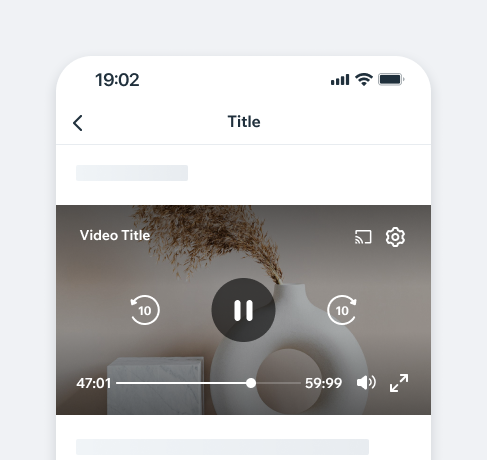
- Overview
- Dev
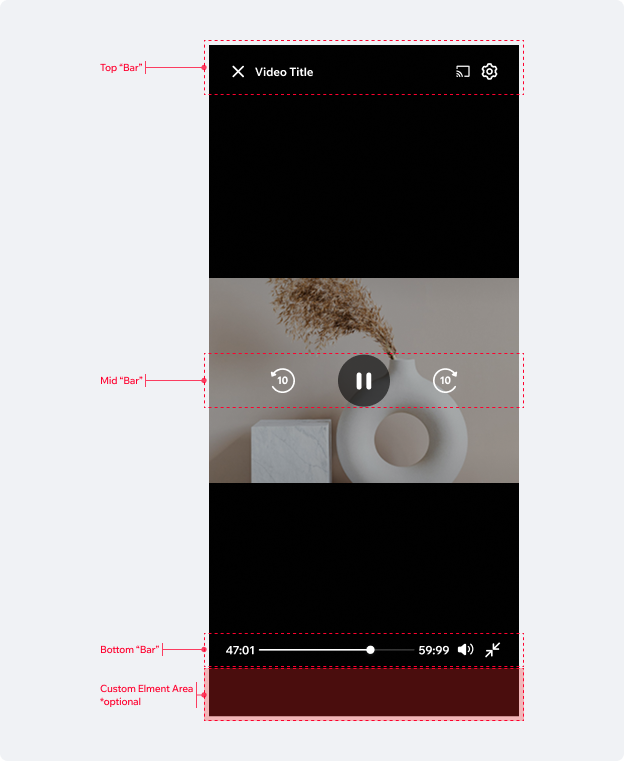
The Video Player UI is divided into three main sections (or bars):
1. Top Bar: Contains the close button, video title, video settings, and additional actions like share or cast.
2. Mid Bar: Features the playback controls, including play/pause and seek back/forward buttons.
3. Bottom Bar: Displays the video time track, elapsed/remaining time, sound control, and the fullscreen button. Additionally, custom elements can be rendered beneath the bottom bar.
| State | Preview |
|---|---|
| Pre Load | 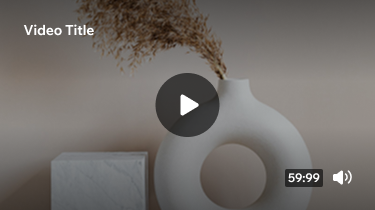 |
| Loading | 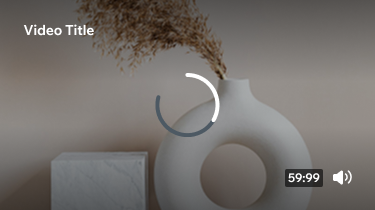 |
| Playing | 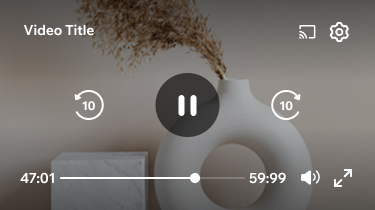 |
| Playing (hideControls) |  |
| Paused | 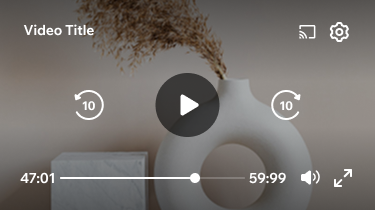 |
| Ended | 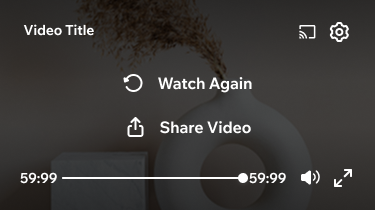 |
| Offline | 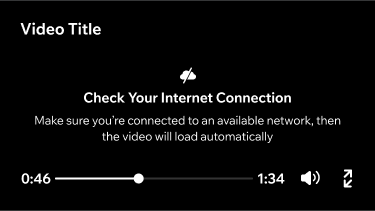 |
| Error | 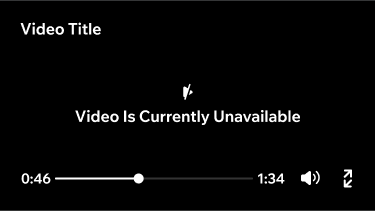 |
| Display | Preview |
|---|---|
| Fit Video The video maintains its original aspect ratio without cropping. Black bars are added if the container's aspect ratio differs. In fullscreen, always use the Fit Container option. |  |
| Fill Video The video scales to fill the container, centering inside it. If aspect ratios differ, cropping may occur to avoid distortion. |  |
| Auto Aspect Ratio The container adapts to the video's size, filling the screen regardless of its orientation. |  |
| Element | Default | On Tap |
|---|---|---|
| Exit full screen Closes portrait and landscape full screen mode |  |  |
| Video quality setting Once set, it’s applied for future videos too |  |  |
| Menu (iOS) Triggers an action sheet with various actions |  |  |
| Menu (Android) Triggers an action sheet with various actions |  |  |
| Share (iOS) Displays the available sharing options |  |  |
| Share (Android) Displays the available sharing options |  |  |
| Chrome Cast Displays the available sharing options |  |  |
| Audio off toggle (mute on) Set by default when “auto start video” is on |  |  |
| Audio on toggle (mute off) Sound is enabled |  |  |
| Expand Enters the full screen mode |  |  |
| Minimize Exits the full screen mode |  |  |
| Replay Replays the video |  |  |
| Seek back (10 seconds) Double tap on the screen left seeks back too |  |  |
| Seek forward (10 seconds) Double tap on the screen right seeks forward too |  |  |
| Element | Preview |
|---|---|
| Play button |  |
| Pause button |  |
| Element | Preview |
|---|---|
| h:mm:ss | 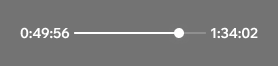 |
| mm:ss | 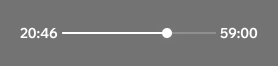 |
| m:ss | 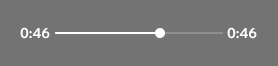 |
| Element | Preview |
|---|---|
| Text |  |
| Toggle Icon |  |
| Custom Actions |  |
Autoplay
Videos can be played manually (default) or automatically (auto-play).
Manual: The user taps the Play/Pause button to start or stop the video.
Auto-Play: The video starts playing automatically when it enters the viewport and pauses when it exits. If a user plays Video B while Video A is already playing, Video A should pause to avoid overlapping playback. Ensure proper communication between multiple videos on the screen to manage this behavior.
The Video Player UI is divided into three main sections (or bars):
1. Top Bar: Contains the close button, video title, video settings, and additional actions like share or cast.
2. Mid Bar: Features the playback controls, including play/pause and seek back/forward buttons.
3. Bottom Bar: Displays the video time track, elapsed/remaining time, sound control, and the fullscreen button. Additionally, custom elements can be rendered beneath the bottom bar.
Video Title is limited to 2 lines in portrait mode and a single line in landscape mode.
Track Knob size is 10px and will expand to 20px when tapped.
Video Overlay on tap is bi-directional 60% black and 30% black in the middle.
<VideoPlayer
  style={styles.video}
  muted={isMuted}
  paused={isPaused}
  forceFullScreenOnPlay={forceFullScreenOnPlay}
  onMuteChange={onMuteChange}
  title={videoName}
  customView={customView}
  duration={596}
  onBuffer={onBuffer}
  onPause={onPause}
  onPlay={onPlay}
  source={videoSource}
  poster={'https://commondatastorage.googleapis.com/gtv-videos-bucket/sample/images/BigBuckBunny.jpg'}
  shareOptions={shareOptions}
/>
